---
title: "VBA Script for Splitting Excel Workbook"
description: "Recently I got an Excel file which contained more than 50 worksheets and I needed to split them into individual files."
publicationDate: 2018-04-22
category: "Scripts & Templates"
authorName: "Lavneet Bansal"
originalPublication: "Audit Monk"
originalUrl: "https://auditmonk.wordpress.com/2018/04/22/vba-script-for-splitting-excel-workbook/"
featuredImage: "/images/auditmonk/vba-script-for-splitting-excel-workbook.webp"
draft: false
tags:
  - "Excel"
  - "Spreadsheets"
---

Recently I got an Excel file which contained more than 50 worksheets and I needed to split them into individual files.

After a lot of searching, I found this simple VBA script to split excel files into individual worksheet.

<blockquote>
<pre>Sub Splitbook()
Dim xPath As String
xPath = Application.ActiveWorkbook.Path
Application.ScreenUpdating = False
Application.DisplayAlerts = False
For Each xWs In ThisWorkbook.Sheets
    vis = xWs.Visible
    xWs.Visible = xlSheetVisible
    xWs.Copy
 Application.ActiveWorkbook.SaveAs Filename:=xPath &amp; "\" &amp; xWs.Name &amp; ".xlsx"
 Application.ActiveWorkbook.Close False
Next
Application.DisplayAlerts = True
Application.ScreenUpdating = True
End Sub</pre>
</blockquote>
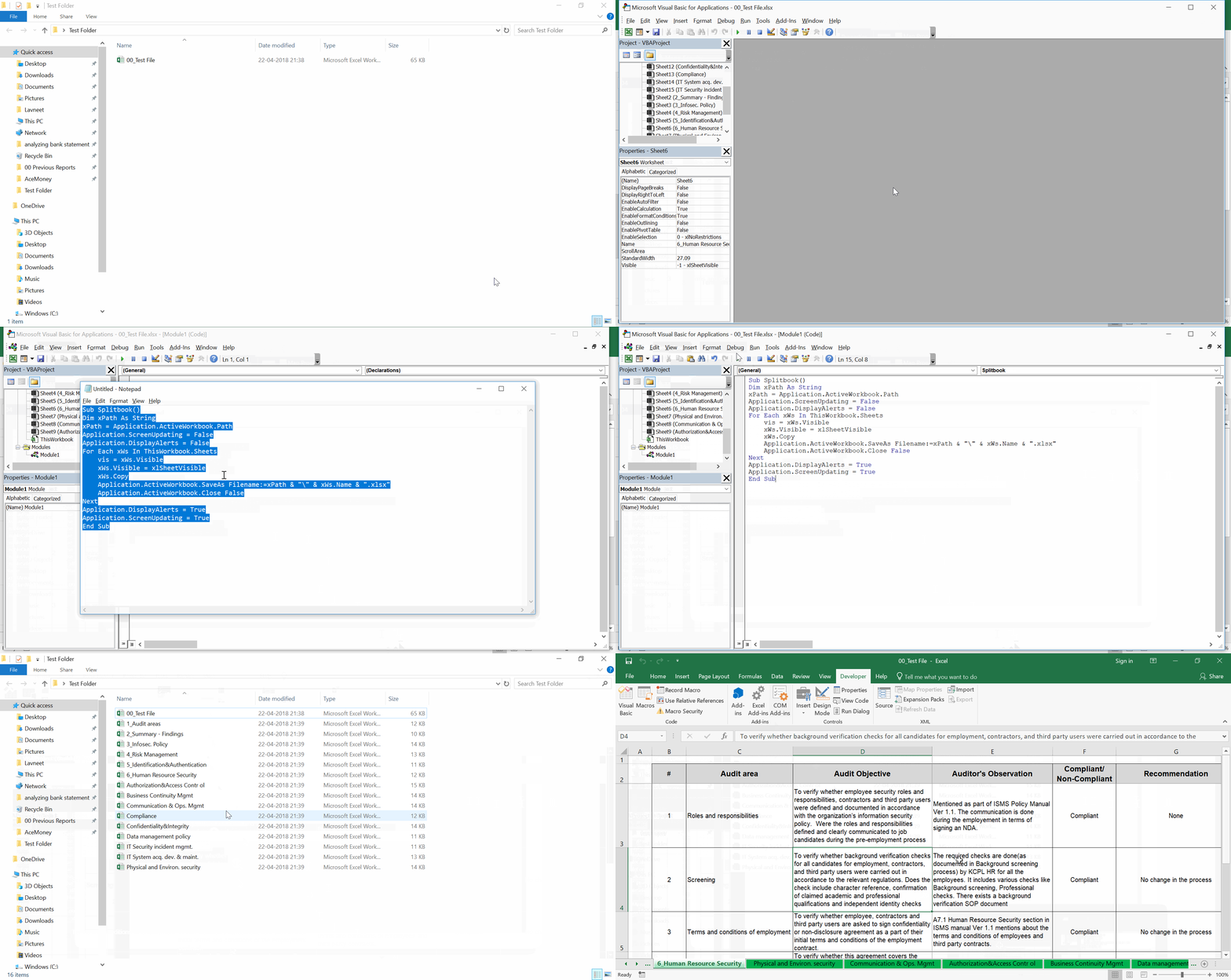
In Excel perform following functions:
<ul>
	<li>Go to Visual Basic editor. Developer &gt; Visual Basic (Alt + F11)</li>
	<li>In VB editor go to Insert &gt; Module</li>
	<li>Now copy paste the above script in the Module screen</li>
	<li>Now run the VBA code by pressing F5</li>
	<li>All worksheets (including the hidden sheets), will now be saved as individual files in the same directory as that of original file</li>
</ul>
<img class=" size-full wp-image-1341 aligncenter" src="/downloads/auditmonk/vba-script-for-splitting-excel-workbook/excel_split_vba.gif" alt="VBA Script to split excel files" width="1920" height="1020" />

&nbsp;

&nbsp;